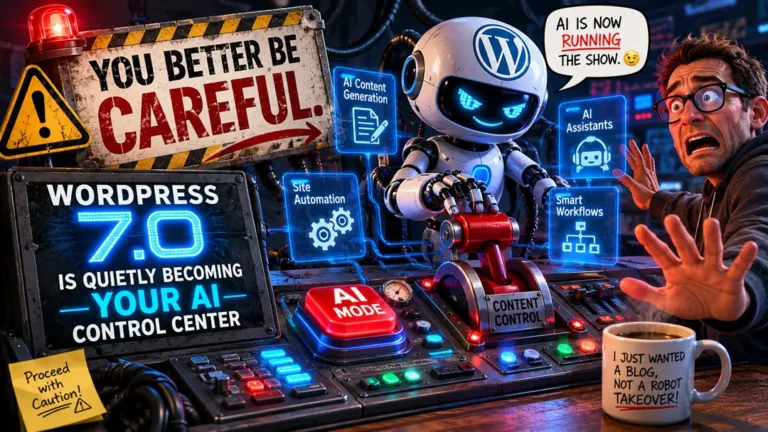
WordPress 7.0 has finally been released
WordPress 7.0 officially launched on May 20, 2026, and it’s a big one, it kicks off Phase 3 of WordPress development, which is all about making the platform easier to work in, especially when you’re collaborating with others. The collaboration feature was introduced in version 6.9, the Collaboration part of WP 7.0 was removed from the core for now while the bugs get fixed.
If you’re a content creator who uses WordPress regularly, you’re going to notice some helpful changes right away. There’s nothing here that should overwhelm you, but there’s plenty that will save you time and frustration. Let’s walk through all of it.
Quick heads-up before you update: As with any major WordPress update, it’s a good idea to wait a few days after release before clicking that update button, just in case any early bugs get discovered. And no matter what, always do a full backup of your files and database before updating. Minor updates (the security ones) should be applied right away. Major updates, like this one, are worth a short pause.
A Fresh Look in the Admin Area
When you log into your WordPress dashboard after updating to 7.0, you may notice things look just a little bit different. Nothing dramatic, think subtle.
There’s a slight rounding on buttons and corners, a soft fade/transition when you move from one area to another (instead of an abrupt jump), and a new default color scheme.
That blue you’ll see when hovering over menu items? That’s the new default color scheme, which used to be tucked away under the name “Modern.” It’s now the standard look for WordPress 7.0. If you want to change it, just head to Users → Profile, and you’ll find the color scheme options there, same as always.
It’s a small polish, but it feels more modern, and there are hints that bigger admin redesigns are on the way.
AI Connectors Dashboard
WordPress 7.0 now includes a built-in AI Connectors dashboard, found under Settings → Connectors in your admin sidebar. This is where you can connect AI tools, like Claude (Anthropic), ChatGPT (OpenAI), and Google AI Studio (Gemini), directly to your WordPress site.
Here’s how it works in plain terms:
Don’t have an API key? Google AI Studio has a pretty healthy free tier if you have a Google account. Claude and ChatGPT require accounts with those services.
Important note: This dashboard is just the connection hub. To actually use AI features in your editor, you also need to install the AI plugin and enable the features you want inside it. Once you do, you’ll have options to generate titles, images, and more, right inside the editor.
A word of caution: If you already use AI features through plugins like Yoast or Rank Math, some of those paid features may overlap with what’s now built in. Worth keeping that in mind. And if you’re not ready to bring AI into your site yet, you don’t have to, none of this is required.
Visual Revisions: See What Changed, Not Just Code
This one is a game-changer for content creators who don’t know code.
Revisions let you look back at older saved versions of a post or page.
Before WordPress 7.0, comparing revisions showed you a wall of raw code, not exactly easy to scan when you just want to see what changed.
Now, in WordPress 7.0, Visual Revisions show you the actual content with color-coded highlights:
You can scroll through past revisions using a slider at the top, see exactly what shifted between saves, and click Restore to go back to any version you want.
To find it: go to any post or page, look in the right sidebar under Post, and click on Revisions.
No code reading required. Finally.
Hide Blocks by Device Type
WordPress has had the ability to hide blocks for a while, but it used to be all-or-nothing. In WordPress 7.0, you can now choose which device types to hide a block on, desktop, tablet, or mobile, independently.
So if you’ve got a video block that looks great on desktop but clutters things up on mobile, just right-click the block (or use the three-dot menu), choose Hide, and check the box for mobile only. Hit Apply, and that block won’t show for mobile visitors while everyone else still sees it.
You can also use this to hide blocks you’re still working on. Check “hide from everything” to keep it from publishing until it’s ready.
Bonus: there’s now a keyboard shortcut to get to the hide menu faster.
Mobile Menu Customization and Templates
If you want your site’s navigation menu to look different on mobile, WordPress 7.0 now gives you real control over that. Previously, customizing the mobile menu (also called the Navigation Overlay) was pretty limited.
Now you can:
To get there: go to Site Editor → Template Parts → Header → Navigation block, then look for the mobile menu or Navigation Overlay section in the sidebar. You can create new overlays and then select which one you want to use as your default.
This is great for anyone who wants their mobile visitors to have a clean, purpose-built navigation experience.
Two New Blocks: Icons and Breadcrumbs
WordPress 7.0 adds two brand-new blocks to your editor toolbox.
Icon Block
Add icons to your posts and pages without a plugin. Type /icon in the editor to insert one, then style it, choose a color, add a background, adjust the size, and even add a border with rounded corners if you like. Great for adding visual interest to your content.
Breadcrumb Block
Breadcrumbs are those little navigation trails you see at the top of some pages, like Home > Blog > This Post. Type /breadcrumb in the editor to add one. You can toggle whether the “Home” link and the current page name show up, and you can customize the separator character between items. Breadcrumbs are especially useful when added to a page or post template so they automatically appear across multiple posts.
Font Management Is No Longer Theme-Dependent
Before WordPress 7.0, you could only manage fonts if you were using a block theme. That locked out a lot of users on older or non-block themes.
Now, font management is available to everyone, regardless of which theme you’re using. Just go to Appearance → Fonts in your admin sidebar.
From there, you can:
Once a font is installed, it shows up as a choice in the Typography settings whenever you’re editing a text block.
Add Custom CSS to a Single Block
If you (or someone helping you) know a little CSS, here’s a welcome addition: you can now add custom CSS to one specific block without it affecting every other block on your site.
In previous versions of WordPress, your only option was to add a CSS class to a block, but that class affected every place that class was used. There was no clean way to style just one block in isolation.
Now in WordPress 7.0, when you’re in the block editor, select any block, scroll down to Advanced in the right sidebar, and you’ll see a new Additional CSS field just for that block. Whatever you type in there applies only to that block and nothing else.
This opens up a lot of creative possibilities without the risk of accidentally breaking other parts of your site.
Pattern Edit Only Mode
When you insert a pattern (a pre-designed block layout) into a post or page, WordPress 7.0 now starts you in Pattern Edit Only Mode. This means your editing options are limited by default until you click the Edit Pattern button in the right sidebar.
Why? Because in older versions, you could accidentally tweak settings deep inside a pattern and throw off the whole layout without meaning to. This new default protects you from those easy mistakes. When you’re ready to make bigger changes, just click Edit Pattern and have at it.
New Design Controls in the Editor
Under Typography in the block sidebar, WordPress 7.0 adds a few new formatting controls via the three-dot menu:
These are small but useful additions, especially if you like having fine-grained control over how your content looks without digging into CSS.
Cover Block Now Supports Video Embeds
The Cover block, the one you use to set a big image or color behind text, can now use a video embedded from a URL as its background. Before 7.0, you could only upload a video from your media library or use a featured image. Now there’s an “Embed video from URL” option too.
Heading Blocks Just Got Faster to Add
This one’s tiny but nice: when you type /h in the editor to add a heading, you can now click directly on H2, H3, etc. from the suggestion menu, one step instead of two. Previously you’d insert a default H2 and then click to change it. Small time-saver, but those add up.
Command Palette Button Is Now Visible
The Command Palette is a quick-search tool that lets you jump to any part of WordPress instantly. Before 7.0, you had to know the keyboard shortcut to open it (Ctrl+K on PC, Cmd+K on Mac).
Now there’s a visible button in the top-left corner of the admin toolbar so you don’t have to remember the shortcut. The keyboard shortcut still works too.
PHP Version Reminder
Not exciting, but important: WordPress 7.0 requires PHP 7.4 or higher to run. If your hosting account is still on PHP 7.3 or older, your site may not work properly, and older PHP versions no longer receive security support, which leaves your site exposed.
If you’re not sure what version of PHP your site is running, check with your hosting provider. The recommended version to be on is PHP 8.3 if your setup supports it.
Let’s Wrap This Up
WordPress 7.0 is a solid update for content creators. The visual revisions alone are worth the upgrade, no more squinting at code to figure out what changed in your post. Pair that with device-specific block hiding, a fresh look in the admin, new blocks for icons and breadcrumbs, and better font management, and you’ve got a version that genuinely makes day-to-day content work a little smoother.
The AI connectors are optional for now, but they’re clearly the direction things are heading. Worth keeping an eye on.
As always, back up before you update, wait a few days if you’re cautious, and then enjoy the improvements.